CodeSyntaxHighlight
A QSyntaxHighlighter that
highlights code in a QTextEdit (or any QTextDocument), using
Pygments. It takes the name of a
language and of a
style, which can be changed later with
setLanguage and setTheme.
Example
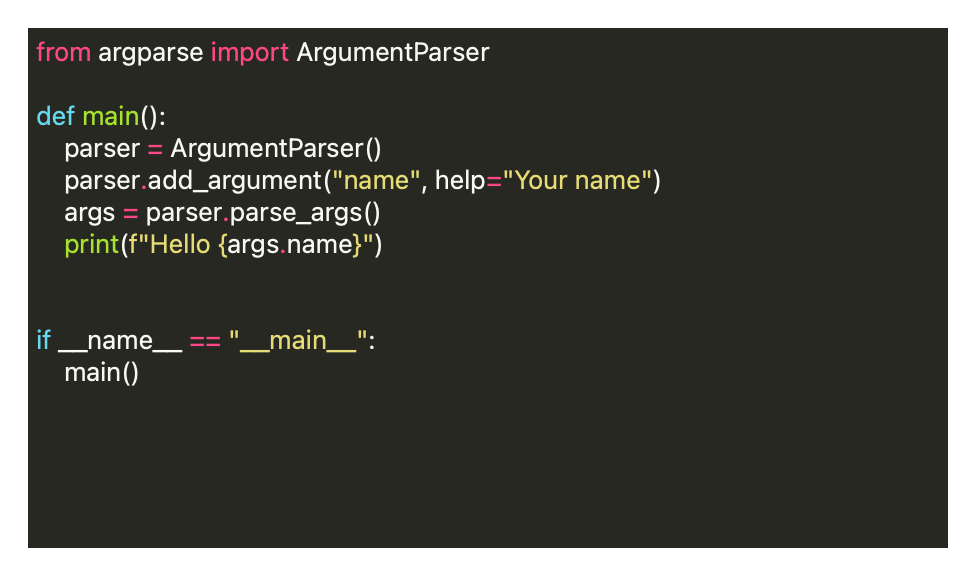
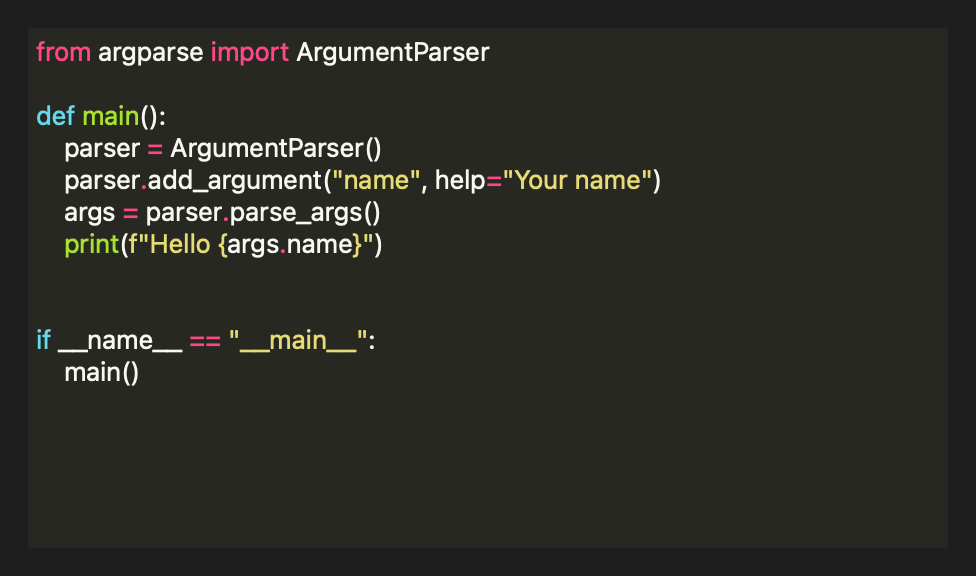
from qtpy.QtWidgets import QApplication, QTextEdit

from superqt.utils import CodeSyntaxHighlight

app = QApplication([])

text_area = QTextEdit()
# (given the QTextEdit, rather than its document, it also sets the background)
highlight = CodeSyntaxHighlight(text_area, "python", "monokai")
text_area.setPlainText(
    """from argparse import ArgumentParser

def main():
    parser = ArgumentParser()
    parser.add_argument("name", help="Your name")
    args = parser.parse_args()
    print(f"Hello {args.name}")


if __name__ == "__main__":
    main()
"""
)
text_area.resize(400, 200)
text_area.show()

app.exec()
CodeSyntaxHighlight(
    parent: SupportsDocumentAndPalette
    | QTextDocument
    | QObject
    | None,
    lang: str,
    theme: KnownStyle | str = "default",
)
A syntax highlighter for code using Pygments.
Parameters:
-
parent(QTextDocument | QObject | None) –The parent object. Usually a QTextDocument. To use this class with a QTextArea, pass in
text_area.document(). -
lang(str) –The language of the code to highlight. This should be a string that Pygments recognizes, e.g. 'python', 'pytb', 'cpp', 'java', etc.
-
theme(KnownStyle | str, default:'default') –The name of the Pygments style to use. For a complete list of available styles, use
pygments.styles.get_all_styles().
Examples:
from qtpy.QtWidgets import QTextEdit
from superqt.utils import CodeSyntaxHighlight

text_area = QTextEdit()
highlighter = CodeSyntaxHighlight(text_area.document(), "python", "monokai")

# then manually apply the background color to the text area.
palette = text_area.palette()
bgrd_color = QColor(self._highlight.background_color)
palette.setColor(QPalette.ColorRole.Base, bgrd_color)
text_area.setPalette(palette)
Subclass of QSyntaxHighlighter
CodeSyntaxHighlight inherits all of QSyntaxHighlighter's methods, signals, and properties. Only those that superqt adds or changes are listed here.
Methods
A syntax highlighter for code using Pygments.
Parameters:
-
parent(QTextDocument | QObject | None) –The parent object. Usually a QTextDocument. To use this class with a QTextArea, pass in
text_area.document(). -
lang(str) –The language of the code to highlight. This should be a string that Pygments recognizes, e.g. 'python', 'pytb', 'cpp', 'java', etc.
-
theme(KnownStyle | str, default:'default') –The name of the Pygments style to use. For a complete list of available styles, use
pygments.styles.get_all_styles().
Examples:
from qtpy.QtWidgets import QTextEdit
from superqt.utils import CodeSyntaxHighlight

text_area = QTextEdit()
highlighter = CodeSyntaxHighlight(text_area.document(), "python", "monokai")

# then manually apply the background color to the text area.
palette = text_area.palette()
bgrd_color = QColor(self._highlight.background_color)
palette.setColor(QPalette.ColorRole.Base, bgrd_color)
text_area.setPalette(palette)